Introducing GraphiQL 6
This work was funded through the GraphQL Community Grant program. I’m grateful to the GraphQL Foundation and Technical Steering Committee for supporting this work and helping me bring these improvements to GraphiQL.
Special thanks to Martin Bonnin and Benjie Gillam for their help with the grant process, and to Dimitri Postolov for all his help throughout the project.
If you have an idea for improving a GraphQL Foundation project, consider applying! The program supports code, documentation, and community contributions.
GraphiQL 6 brings a completely redesigned workspace, along with new tools for building operations and saving operations. The changes reach from the editor and navigation to the smaller details, including tabs, menus, and dialogs.
The biggest additions are a built-in query builder, operation collections, and Tree and Table response views.
Get started with GraphiQL 6
Try the GraphiQL demo, or install graphiql@6 in your React application. The setup documentation covers connecting GraphiQL to your API.
If you’re upgrading an existing integration, start with the migration guide. For the full list of changes, see the GitHub release notes and GraphiQL changelog.
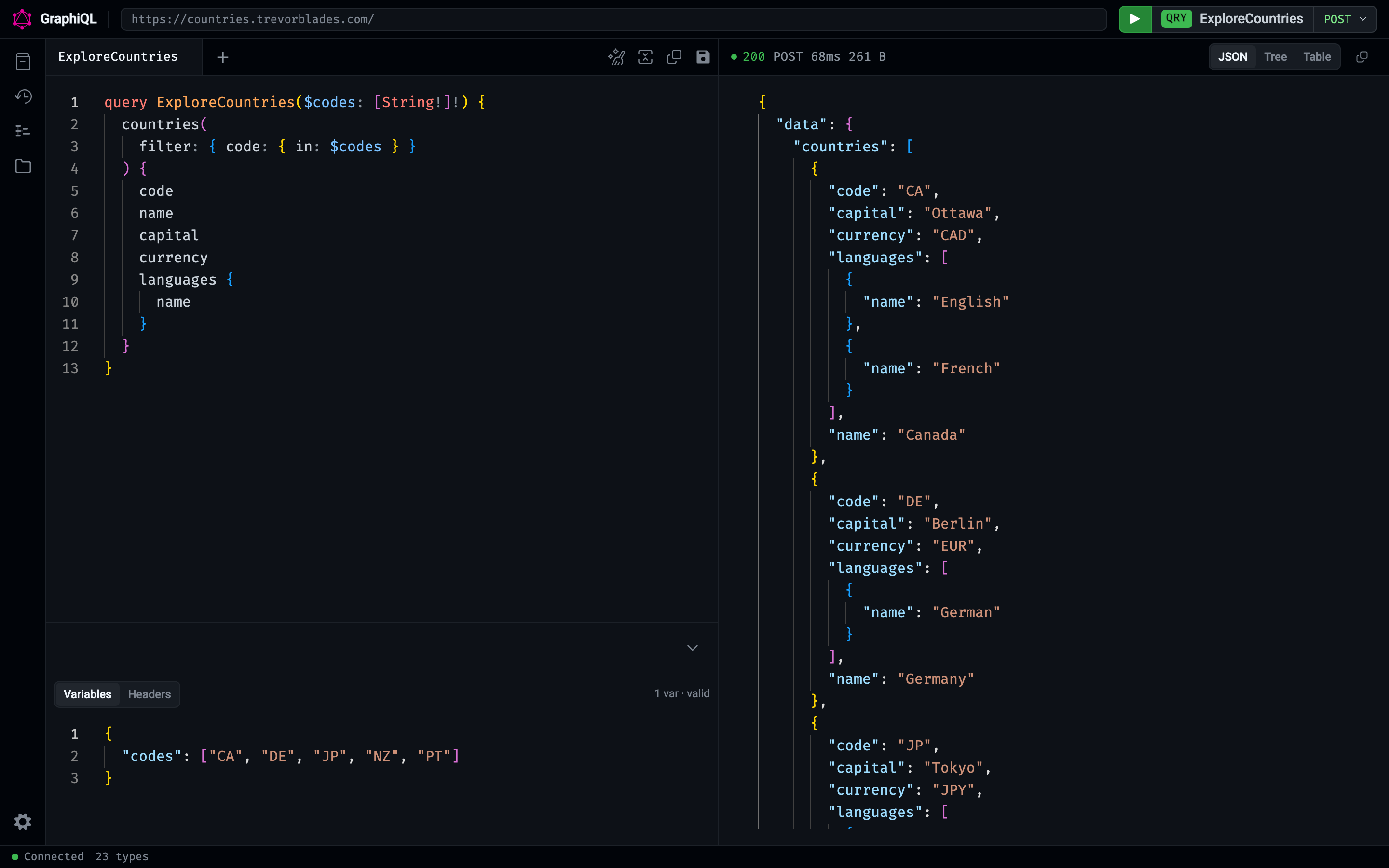
A more modern look
GraphiQL 6 gives the familiar workspace a more modern look, taking cues from the IDEs we use every day. Refreshed colors, spacing, and controls carry through the app.
We’ve also improved accessibility, with clearer keyboard focus indicators, better-labeled controls, and more readable text in the refreshed styles. Automated accessibility checks now run alongside our other tests, helping us catch common problems and guard against regressions as GraphiQL evolves.
Let’s walk through the new workspace using a few country queries, from choosing fields to sharing saved operations.
Build an operation from the schema
The query builder lets you select fields from your schema and see the operation take shape in the editor. You can move between the builder and the text editor as you work, with the builder reflecting the operation you’re editing.
The clip below shows how you can add fields, extract them into a reusable fragment, and keep editing through the builder.
View the resulting fragment and response as a still image.
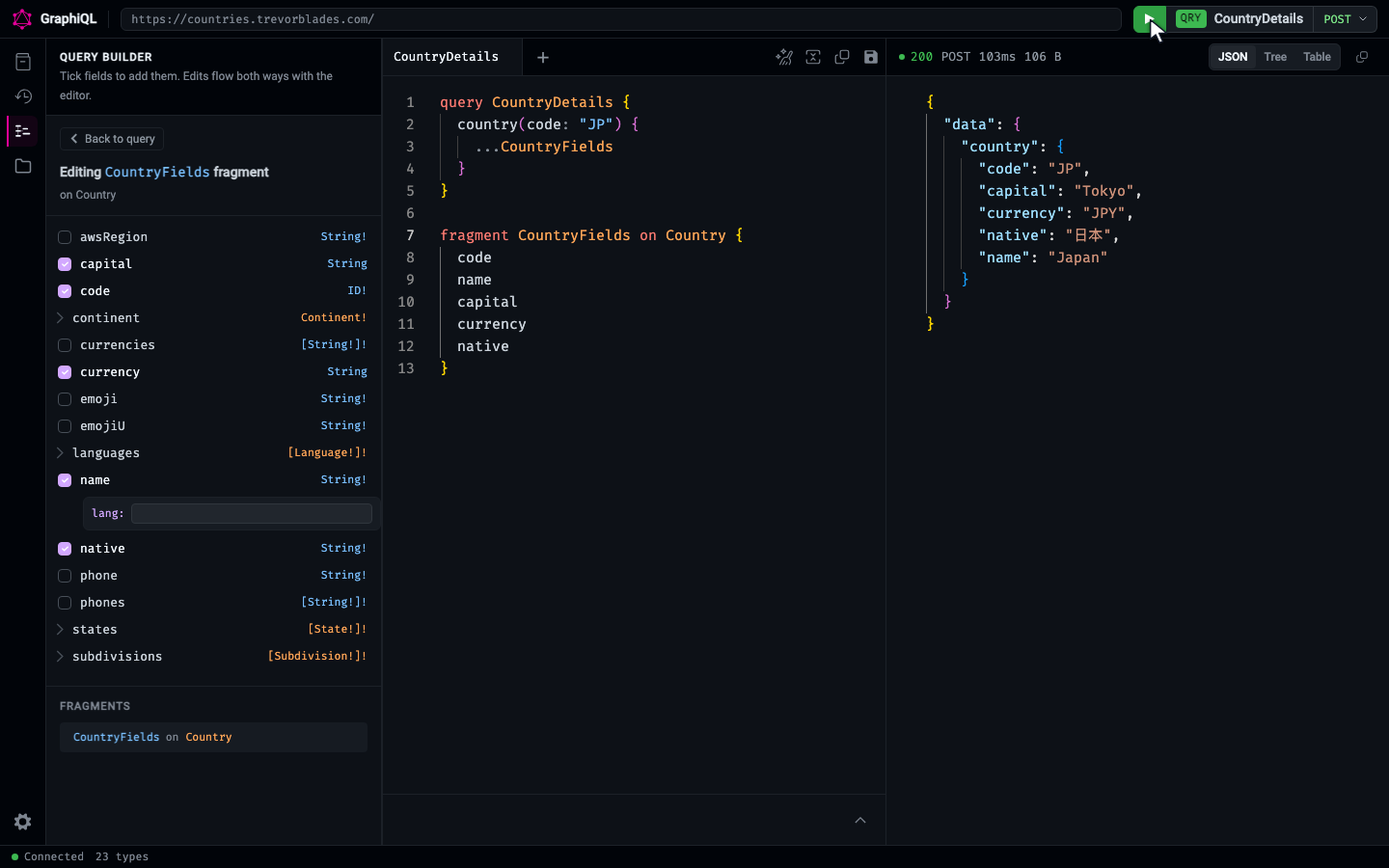
The builder also provides argument inputs, supports promoting scalar arguments to variables, and offers type selections for fields that return interfaces or unions.
Saving and sharing operations
Collections allow you to organize, manage, and share your operations in your workspace. Save an operation with Save operation or the keyboard shortcut (⌘S on macOS, Ctrl+S on Windows and Linux), choose a collection, and give it a name. For example, a “Customer support” collection could hold queries for looking up a customer, checking recent orders, and investigating a failed payment.
Opening a saved operation opens it in a new tab or returns to its existing tab. You can edit and run it, then save your changes back to the same collection item. History remains useful for returning to recent work while collections let you choose which operations to keep and organize for repeated use.
Collections also support sharing. Share copies importable JSON for an operation or a whole collection to your clipboard. Once you send that JSON to someone, they can paste it into their Collections panel or use the import dialog to bring it into their workspace.
View the collection import dialog as a still image.
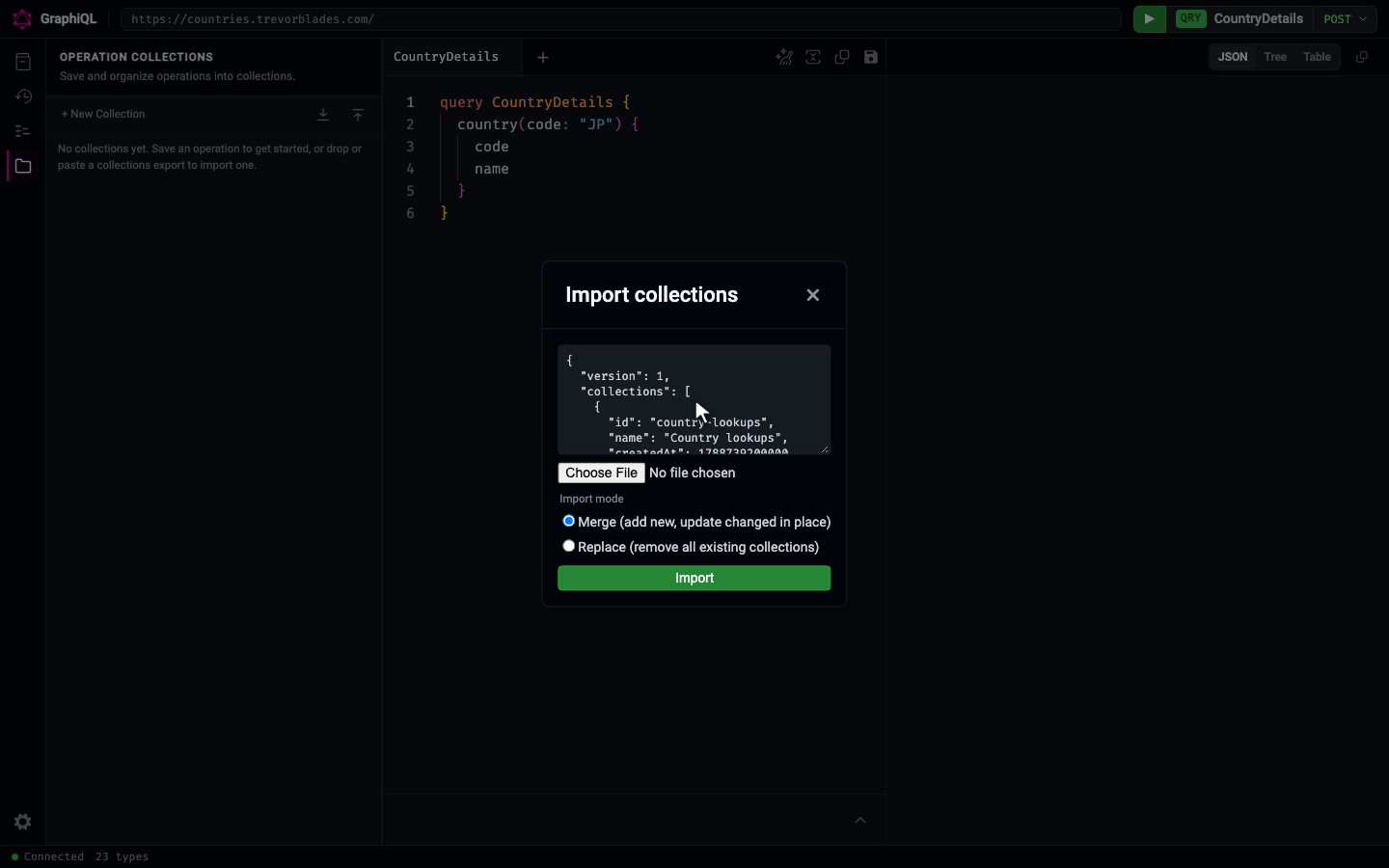
Importing also accounts for operations you already have. When an incoming operation differs from your saved copy, you can apply the incoming changes, keep your versions, or review the conflicts individually. Re-importing the same unchanged collection doesn’t create duplicate operations, and merging keeps operations that aren’t part of the import.
Collections save in your browser by default, but organizations embedding GraphiQL can provide their own storage backend. Teams can connect collections to internal services and build shared libraries of operations into their existing tools.
With the default browser storage, sharing transfers the JSON you copied; subsequent edits need to be shared and imported again. That makes it useful for passing along a set of examples while leaving each recipient in control of their saved copies.
Response pane updates
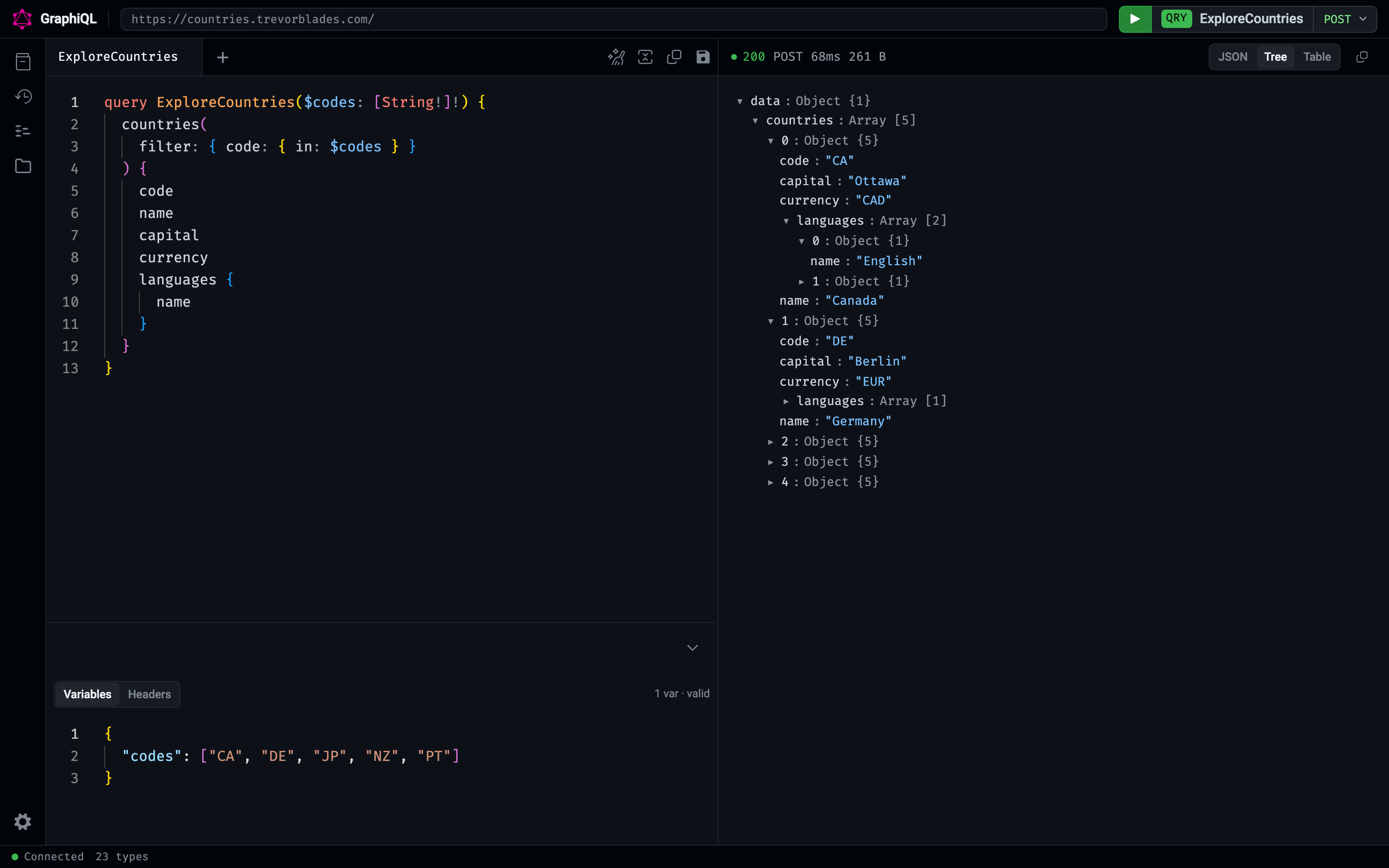
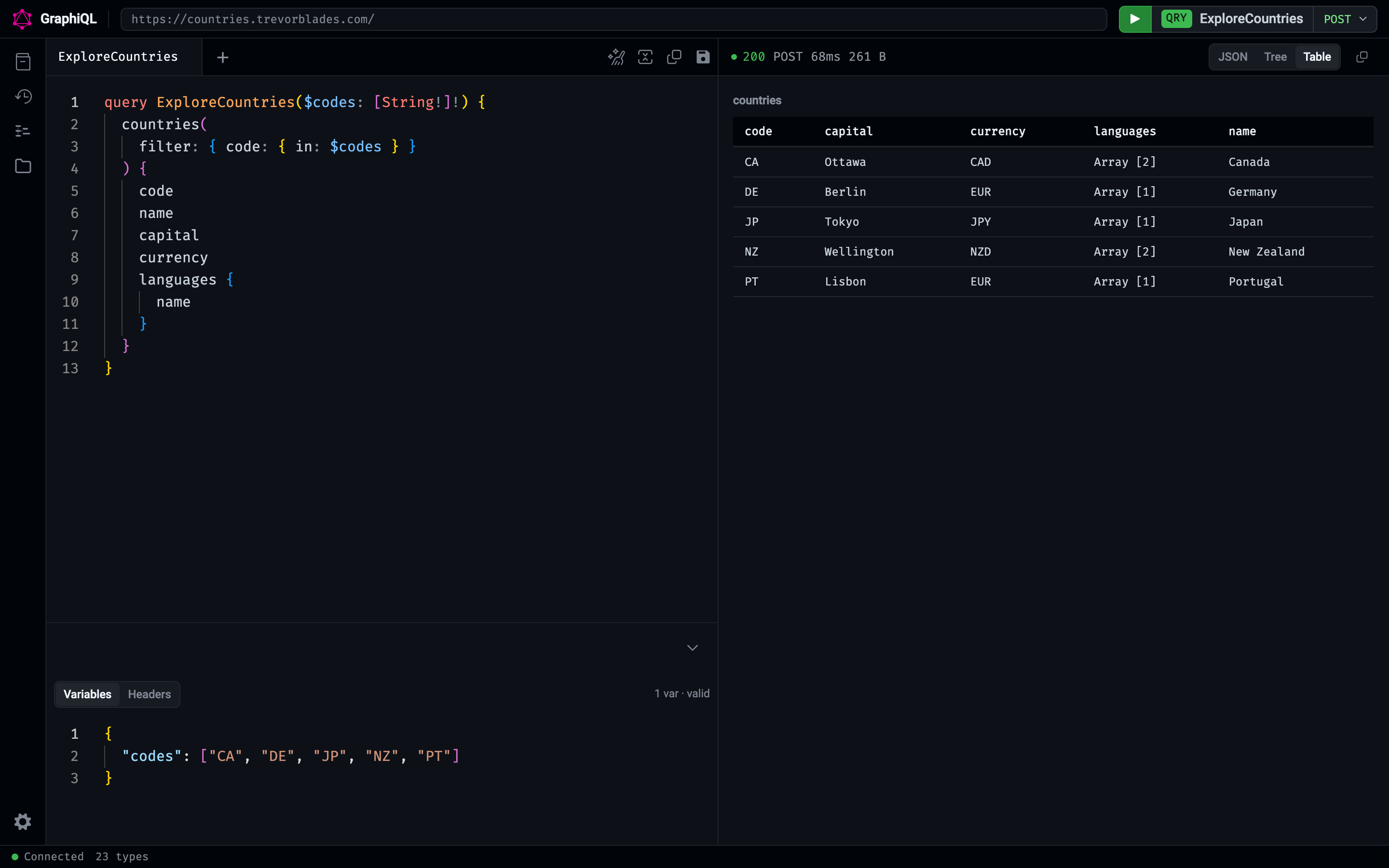
The response pane now offers JSON, Tree, and Table views. You can switch between them for the same result, depending on what you’re trying to inspect.
JSON shows the response in the editor. It’s useful when you want to read the complete structure, examine field names and values, or copy the response.
Tree lets you expand individual objects and arrays, keeping the branches you’re interested in open while collapsing the rest.
Table presents list-shaped results as rows and columns. For the country example, that means comparing codes, capitals, and currencies across several countries without following each object through the JSON. Nested objects and arrays appear as short summaries, and you can switch back to Tree or JSON to inspect their contents. GraphiQL remembers your selected response view across reloads.
A new transport API
The new transport API sends GraphQL operations to your server and returns HTTP details alongside the result. It’s the recommended replacement for the older fetcher prop, which still works for existing integrations.
When provided by the transport, GraphiQL shows the HTTP method, status, elapsed time, and response size of the most recent request in the response header. These details give you more context when inspecting a result, especially when the server returns an error response.
By default, createTransport discovers which HTTP methods your server supports and prefers QUERY for queries, followed by POST and GET. If discovery is unavailable, it falls back to POST. Mutations continue to use POST.
Help shape what’s next
Take GraphiQL 6 for a spin with your own API, and let us know what works and what could be better. Bug reports and feature requests are welcome. I’m actively maintaining and improving GraphiQL, and your feedback helps shape what comes next.
Thanks for reading and for being part of the GraphQL community.